Installed Apps
The Installed Apps feature in Master Packager Toolbox displays all applications installed on the machine and provides detailed technical information about each one.
This feature exists because Windows built-in application details are often not enough for packaging work. It helps identify hidden or system components, detect related installations, and prepare accurate packaging evaluations before building MSI or Intune packages.
View all installed apps
The Installed Apps feature shows all installed apps on the machine, including MSIX Sparse packages. This is useful when repackaging EXE installers that also install an MSIX Sparse package for context menu integration.
- Win32 apps (MSI and EXE)
- MSIX packages
- Apps that are set hidden due to the System Component setting
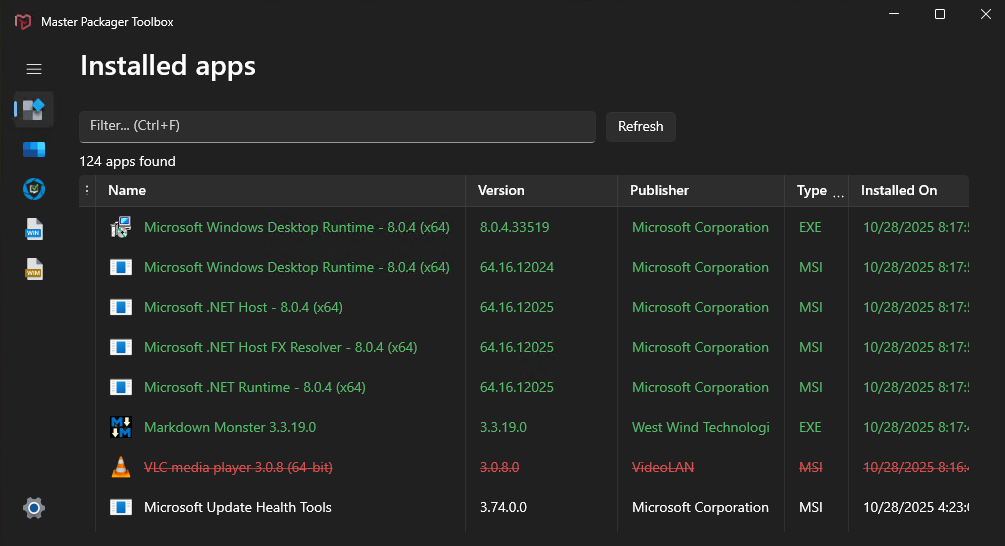
This gives a complete view of what is truly installed on the system, which is essential for reliable application analysis and repackaging.
See the precise install sequence
When dealing with complex software suites that install multiple applications, the sequence of installations matters.
Windows only sorts installed apps by date, not by time. Master Packager Toolbox improves this by showing the exact installation timestamp, down to the second, making it clear in which order components were installed.
This helps determine the correct uninstall order and simplifies troubleshooting of dependent components.
Find MSI source
A common scenario for IT professionals is when an EXE installer silently installs one or more MSI packages inside it.
With Master Packager Toolbox, locating the MSI has never been easier.
How to find it:
- Open the Master Packager Toolbox → Installed Apps → open the app with MSI type
- Click on the hyperlink value for “Install Source”.
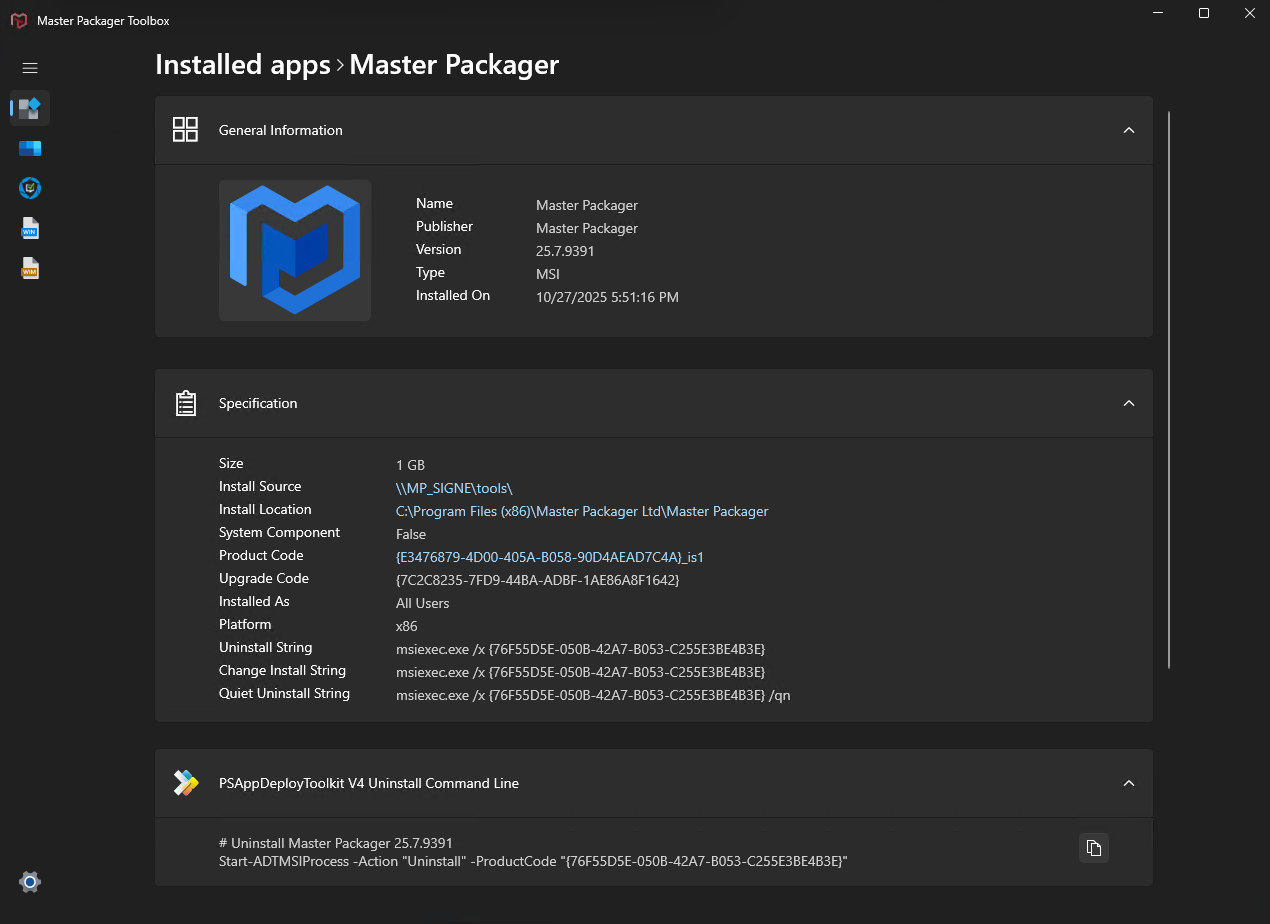
This is the fastest way to locate the MSI source.
Get app details for packaging
Each listed application displays key technical properties to simplify evaluation and packaging preparation.
These details can be viewed directly or copied using the right-click context menu for quick reference.
Displayed information includes:
- Install location
- Install source
- System component
- Package name and version
- Package type (MSI, EXE, MSIX)
- Platform (x86, x64)
- Installed date and time
Additional features
- Copy uninstall commands – Instantly copy the uninstall command line for any MSI, EXE, or MSIX app.
- Export application logos – Click the app logo to export it as a high-quality PNG or ICO, ready for Intune or Patch My PC.
- PSAppDeployToolkit uninstall scripts – Select multiple apps and automatically generate PSADT uninstall code for them.
- Visual indicators – While running Toolbox, newly installed apps appear green, uninstalled ones are red and crossed out, allowing quick comparison before and after testing.