WIM File Format
Some application installers contain many uncompressed files in deep folder structures. This commonly causes two problems:
- Longer download times due to large package size.
- Installation failures caused by long file paths when content is extracted in Intune or Configuration Manager cache folders.
ZIP archives can reduce size, but they require additional temporary storage for extraction. WIM files can be mounted directly without full extraction, and PSAppDeployToolkit v4 includes built-in support for WIM workflows.
DISM.exe
DISM.exe is a built-in Windows command-line tool used to create and service Windows images. You can use the Capture-Image command to create an image.
How to use it
Dism /Capture-Image /ImageFile:<path_to_image_file> /CaptureDir:<source_directory> /Name:<image_name>
- <path_to_image_file> - Full path where the WIM file will be created.
- <source_directory> - Full path to the folder to convert to WIM format. All files and subfolders in this folder are added to the image.
- <image_name> - Name of the image.
Master Packager Toolbox
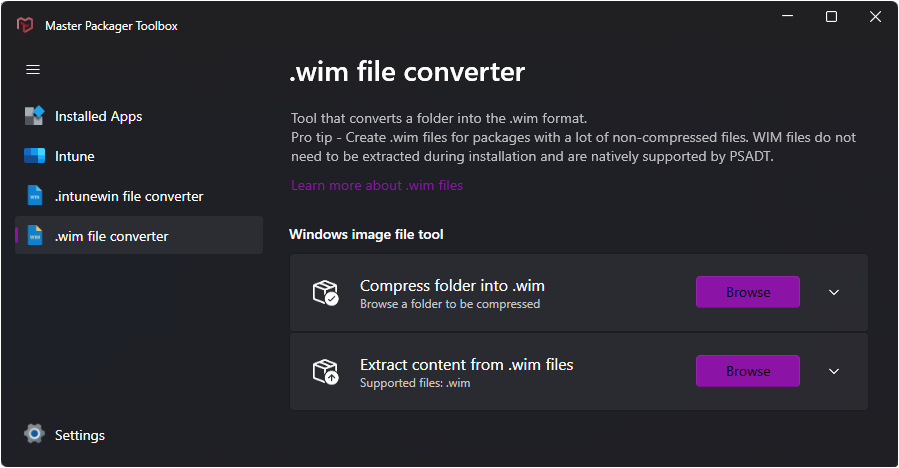
The toolbox allows you to create and extract WIM files. Select a folder to compress into a WIM file. The image name is set to the folder name by default. You can also select an existing WIM file and extract it to the same folder.
How to use WIM images with PSAppDeployToolkit
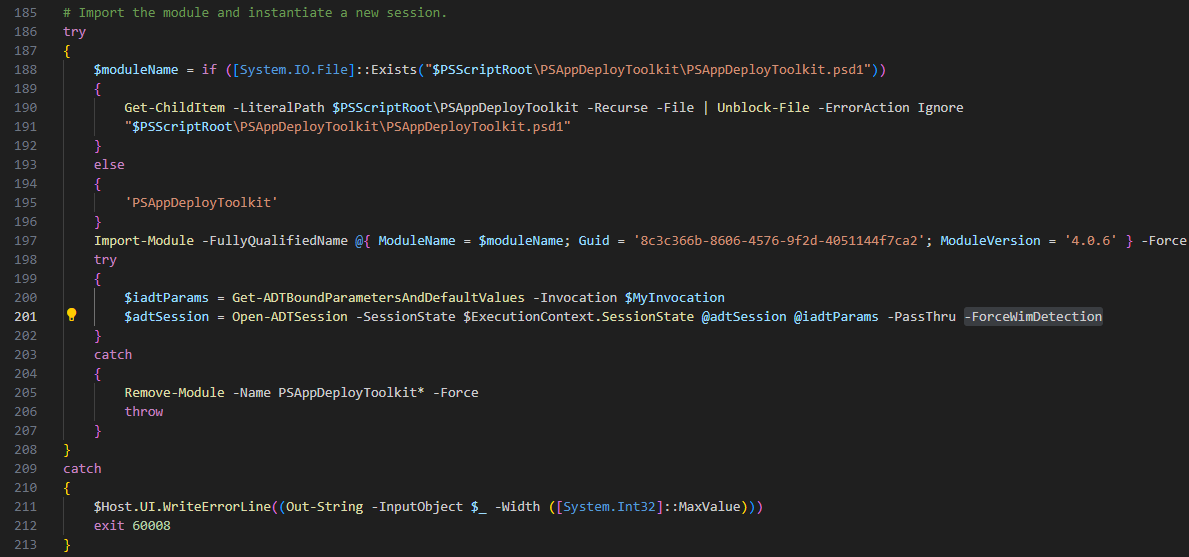
Starting with PSAppDeployToolkit v4, the PSADT team added support for WIM files. You can use Mount-ADTWimFile and Dismount-ADTWimFile to handle WIM files manually, or update Invoke-AppDeployToolkit.ps1 and add the -ForceWimDetection switch to Open-ADTSession.
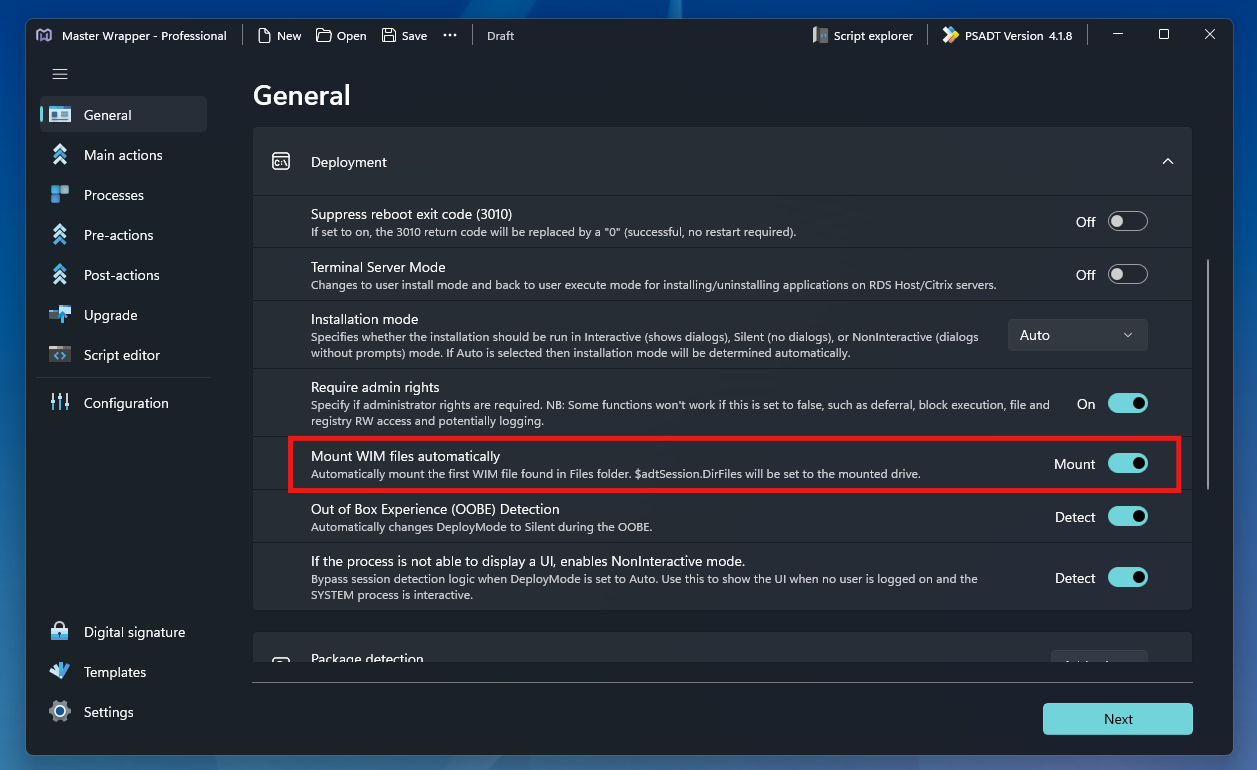
Mount WIM files automatically with Master Wrapper
When using Master Wrapper, in the General section enable Mount WIM files automatically to mount the first WIM file found in the Files folder. When this option is enabled, $adtSession.DirFiles is set to the mounted drive.