Upload packages to Patch My PC with Master Packager Toolbox
Add a new app or update an existing one
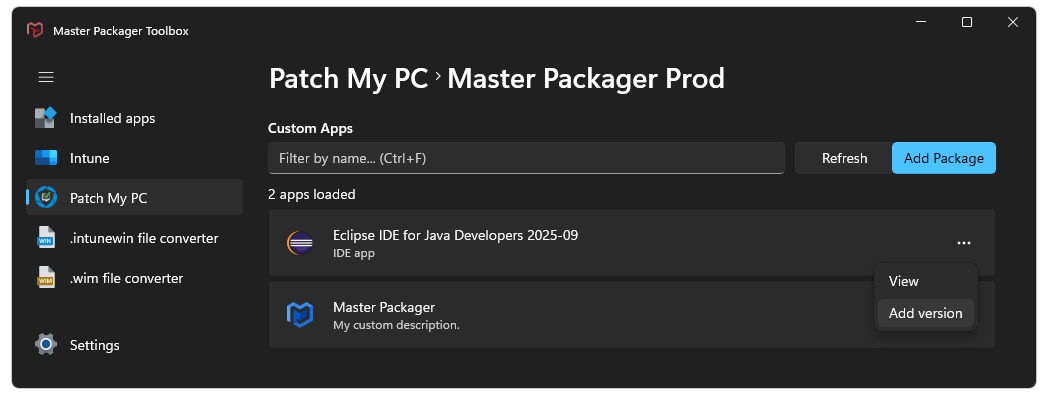
After you log in to your Patch My PC account, select your company. Opening the company displays existing custom apps. To add a new application, click Add Package and browse for the installer. To add a new version for an existing app, click the three dots and select Add version.
Supported file types
- MSI
- MST
- EXE (Setup.exe, Invoke-AppDeployToolkit.exe)
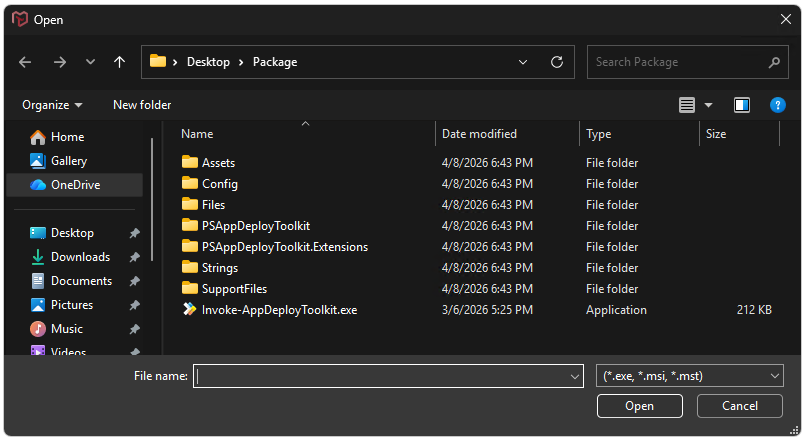
Note: When you select a file, its entire parent folder is uploaded, not only the selected file.
Master Packager Toolbox supports three file types for uploading to Patch My PC Custom Apps. We recommend wrapping installation packages with Master Wrapper. This allows metadata stored in the PSADT package to be read before upload so fewer fields need to be filled manually.
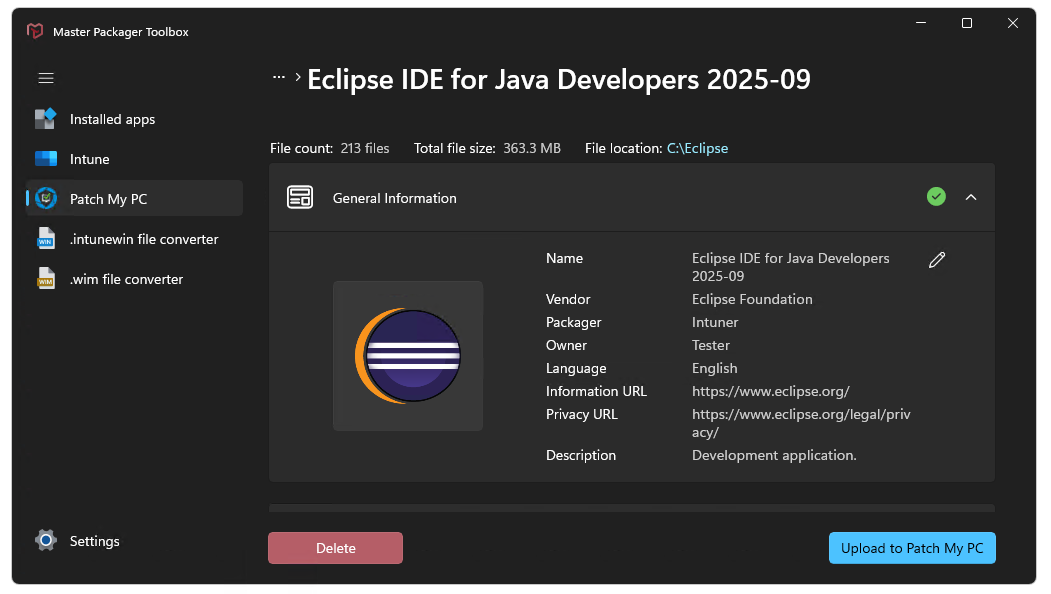
General information
- Name - Name for the application that will be displayed in the Patch My PC portal.
- Vendor - Vendor of the application.
- Packager - The developer field displayed in Intune portal.
- Owner - The owner field displayed in Intune portal.
- Language - Sets the application language
- Information URL - URL displayed in Company Portal.
- Privacy URL - URL displayed in Company Portal.
- Description - Application description displayed in Company Portal.
Deployment
- Primary installer file - The file that will be executed during installation. Cannot be modified.
- Silent install parameters - Installation parameters added when executing the primary installer file.
- Additional silent uninstall parameters - During uninstall, PatchMyPC-Scriptrunner scans the Uninstall registry key and looks for a subkey that matches Apps & features name. If you specify Additional Silent Uninstall Parameters, they are appended to the
UninstallString, not to the main installation file. - Install context - Configures the context in which the app is installed, either System or User. Currently custom uninstall scripts are not supported in the integration.
- Architecture - Sets the app’s architecture.
Note: Detection uses this field to determine whether to look in the 32-bit or 64-bit registry keys:
HKLM:\Software\WOW6432Node\Microsoft\Windows\CurrentVersion\Uninstall
or
HKLM:\Software\Microsoft\Windows\CurrentVersion\Uninstall
- Conflicting processes - Comma-separated list of executables that may interfere with this app installation. Leave this empty if you want PSADT to handle running processes. Otherwise, it is handled by the Manage Conflicting Processes feature.
Detection method
- Apps & features name - The name of the app as it appears in Add or remove programs. You can use the Installed Apps feature in Master Packager Toolbox to locate the name.
- Version - The application version as displayed in the Installed Apps section.
Note: Detection uses this field to determine if the app is installed by looking for a matching DisplayVersion entry in the following registry key:
HKLM:\Software\Microsoft\Windows\CurrentVersion\Uninstall
Additional information
- Notes - Notes that are displayed in the Intune portal. This can be used to share packaging related information with your colleagues.