Files
The Files view displays all folders and files in the MSI package and lets you add, update, extract, or reorganize them.
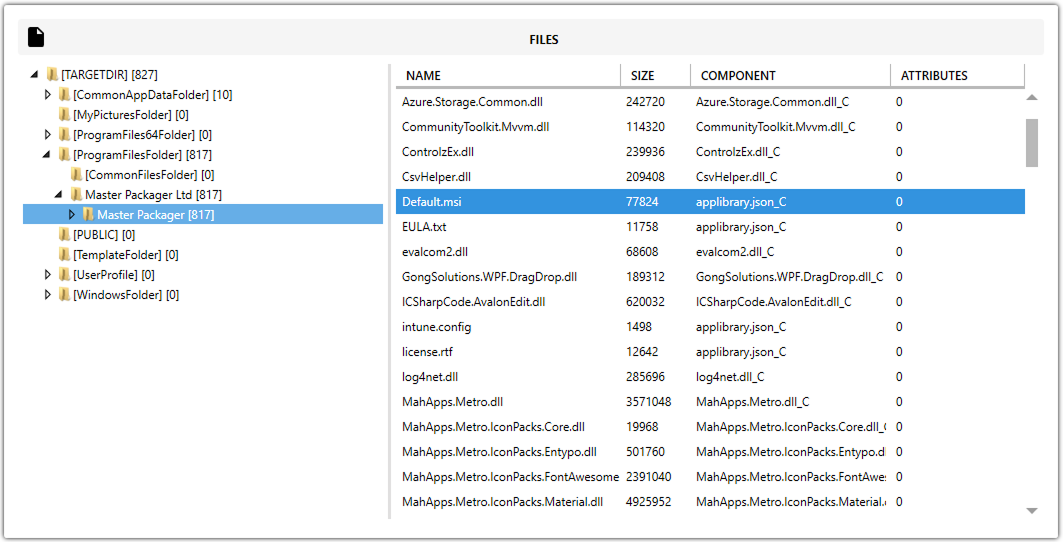
Add files and folders
Master Packager supports two ways to add content:
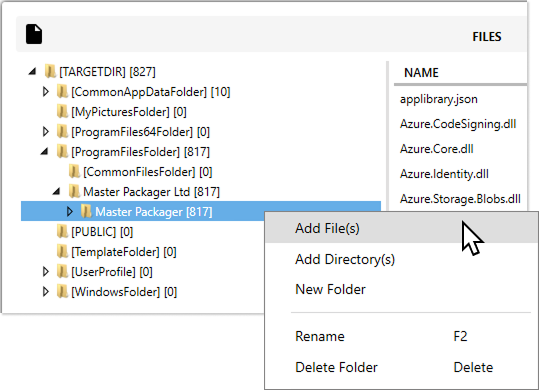
- Drag one or more files or folders directly into the Files view. You can also drag items to a different location inside the
MSIstructure. - Right-click a folder and select Add File(s) or Add Directory(s).
Build files
When you add files to the MSI, Master Packager prompts you to select or create a CAB file.

| Option | Description |
|---|---|
| BUILD NOW | Builds the CAB file immediately. This is the recommended option in most cases. |
| BUILD LATER | Adds the file information to the MSI database without building the CAB file yet. |
Select a CAB file
A CAB file is an archive that stores package files. When adding content:
- If source files for an existing
CABare available, you can select thatCABfile. - If the source files are not available, use a new
CABfile name.
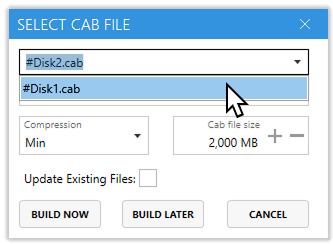
When editing an MSI or MST file, Master Packager automatically preselects a new CAB file name.
CAB file placement
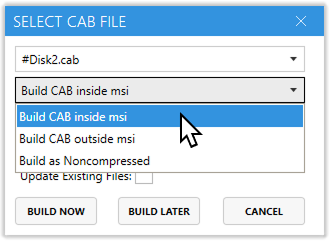
Choose how the CAB file should be stored.
| Option | Description |
|---|---|
| Build CAB inside MSI (default) | Embeds the CAB file inside the MSI. |
| Build CAB outside MSI | Saves the CAB file as a separate file next to the MSI. |
| Build as Noncompressed | Leaves the files uncompressed next to the MSI. They must be present during installation. |
CAB file compression
Choose how much compression should be applied to files inside the CAB.
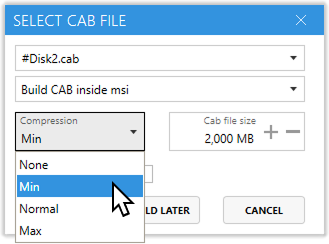
| Option | Description |
|---|---|
| Lower compression | Builds faster but creates a larger file. |
| Higher compression | Builds more slowly but creates a smaller file. |
CAB file size
Set the maximum CAB file size in megabytes (MB).
The maximum size of a single CAB file is 2000 MB.
Update existing files
When Update Existing Files is disabled, all added files are treated as new entries.
When it is enabled, Master Packager compares files by name. If a matching file already exists, only its parameters, such as size and version, are updated.
Example: if the MSI already contains myapp.dll version 1.0.0 and you want to replace it with version 2.0.0, drag the new file into the same folder and enable Update Existing Files in the Select CAB file dialog.
Build or extract all CAB files
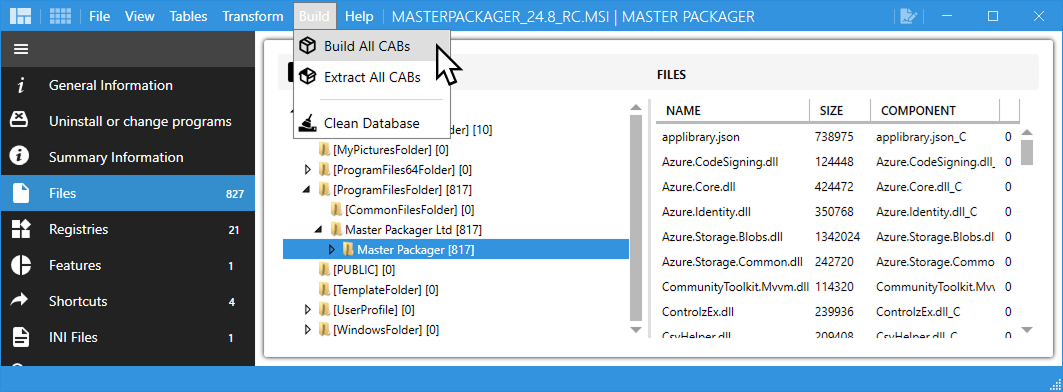
- Go to File > Build > Build All CABs to rebuild every
CABfile. All source files must be extracted next to theMSIfirst. - Go to File > Build > Extract All CABs to extract all files from the
MSICABfiles.
Clean database
The Clean Database option removes embedded CAB files from the _Streams table.
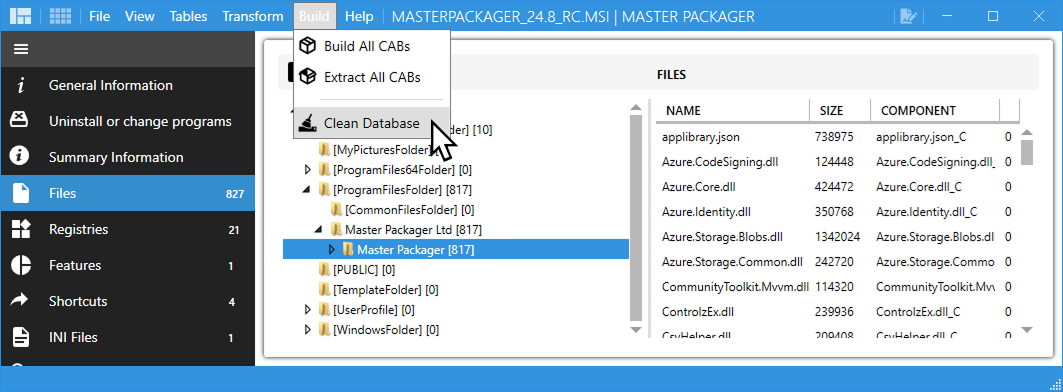
This is useful when files were deleted from the MSI, but the file size did not decrease after rebuilding.
Extract a file
The Extract File(s) function exports the selected file from the MSI to the local file system.
- Right-click a file in the Files view.
- Select Extract File(s).
Keyboard shortcut: Ctrl+Alt+X.
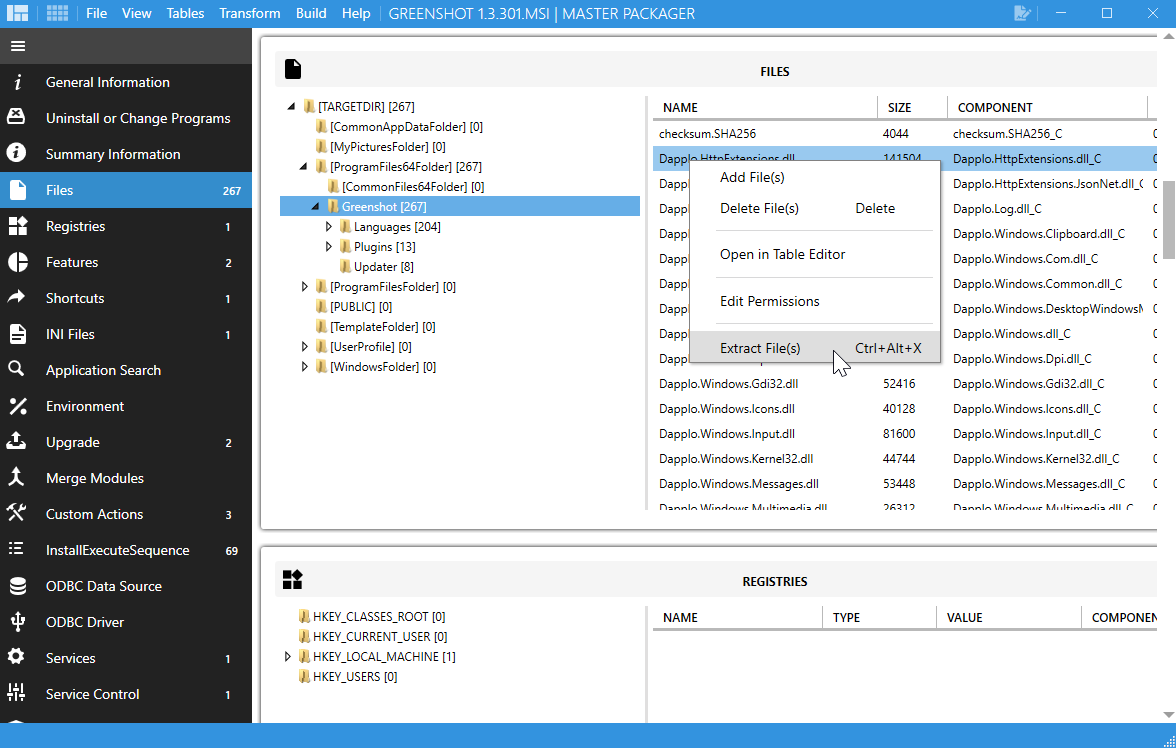
This is useful when you need a single DLL, EXE, configuration file, or icon for testing, analysis, or repackaging.
Extract a directory
The Extract Directory function exports the selected folder and all of its contents to the local file system.
- Right-click a folder in the Files view.
- Select Extract Directory.
Keyboard shortcut: Ctrl+Alt+X.
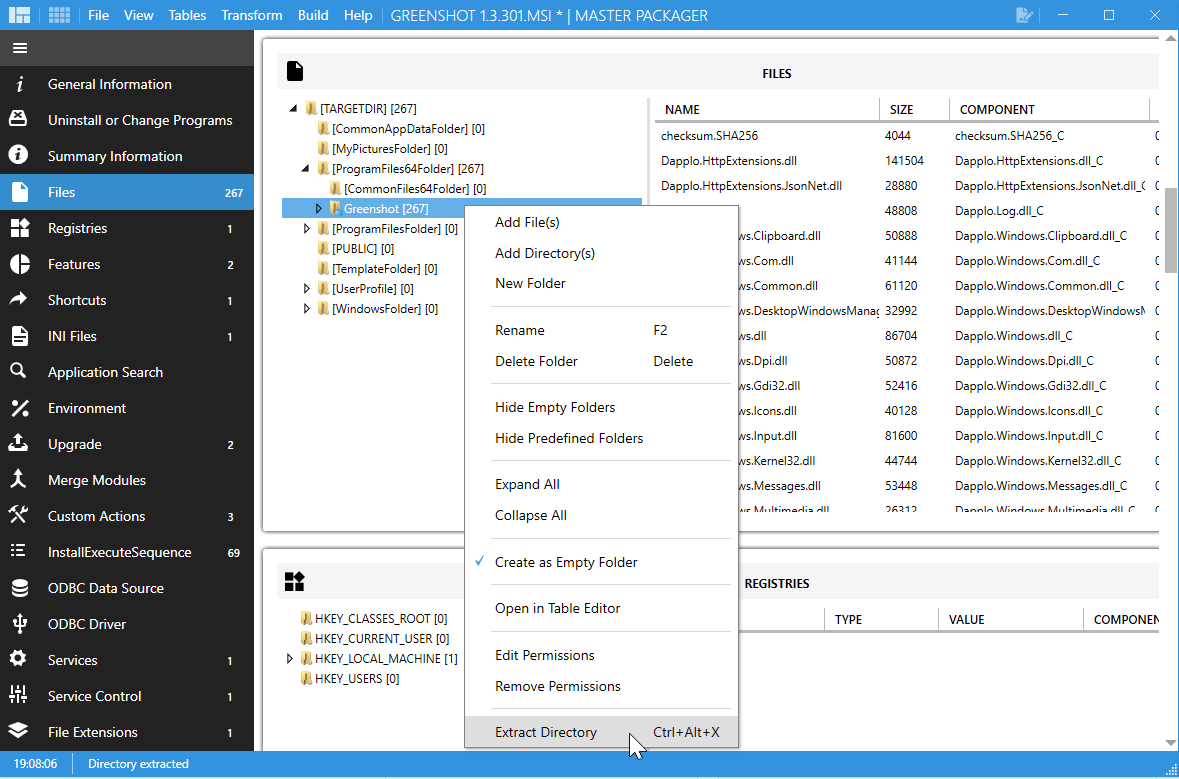
This is useful when you need to review a larger folder structure or understand how the vendor organized the application's file layout.