Add Firewall Exception
Use this predefined action to create Windows Firewall rules during installation and remove them during uninstall.
Rules created with this action appear in Windows Defender Firewall with Advanced Security under Inbound Rules or Outbound Rules.
note
To remove a firewall exception during uninstall, use the same Exception Name that was used when the rule was created.
Fields
| Field | Description |
|---|---|
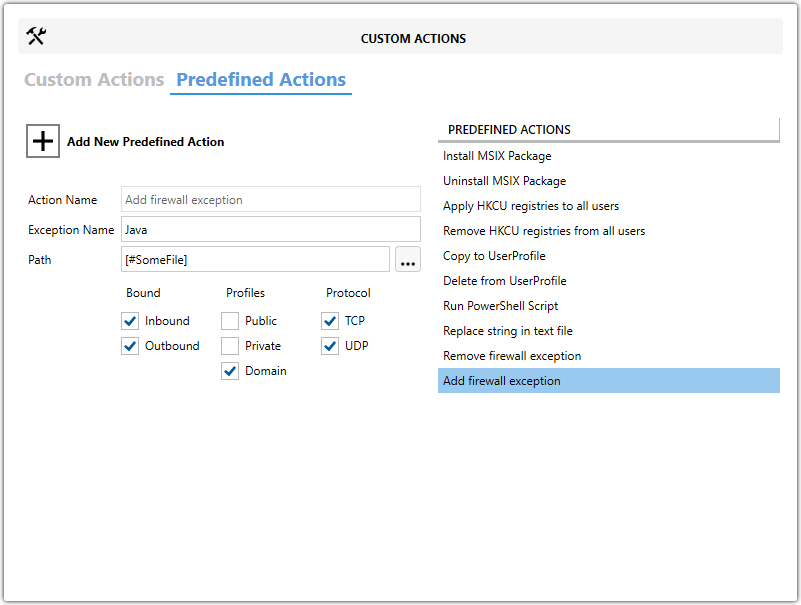
| Exception Name | Defines the firewall rule name. |
| Path | Specifies the full path to the executable that needs the firewall rule. |
| Direction | Chooses whether the rule is Inbound or Outbound. |
| Profiles | Selects where the rule applies: Public for public networks such as cafés or airports, Private for trusted networks, and Domain for organization-managed networks. |
| Protocol | Selects TCP for connection-based communication or UDP for connectionless communication. |
| Remove firewall exception | Removes the rule during uninstall when you use the same Exception Name. |
Steps
- Open the
MSIorMSTin Master Packager. - In the left pane, select Custom Actions.
- Open the Predefined Actions tab.
- Click Add New Predefined Action and select Add Firewall Exception.
- Enter a value in Exception Name.
- Set Path to the executable that requires the rule.
- Choose the appropriate Direction, Profiles, and Protocol.
- If the rule should be removed during uninstall, configure Remove firewall exception with the same Exception Name.
tip
You can define multiple firewall rules in the same package.