Copy to User Profile
Use this predefined action to copy a file or folder to every existing user profile during a SYSTEM-context installation.
The action also copies the item to the default user profile so new users receive it the first time they sign in.
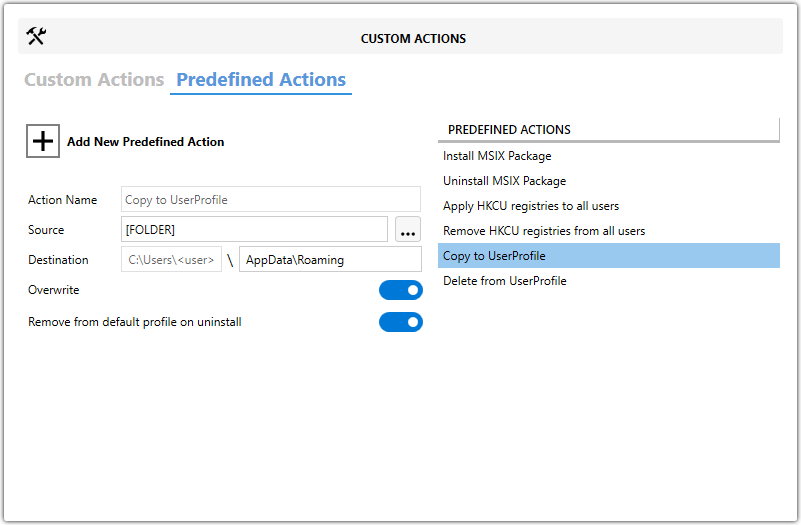
When to Use It
Use this action when you need to place per-user files, folders, templates, or shortcuts in locations such as Desktop, Documents, or AppData for all users.
Fields
| Field | Description |
|---|---|
| Action Name | Identifies the predefined action in your project. |
| Source | Specifies the file or folder to copy. |
| Destination | Specifies where the file or folder should be copied inside the user profile. Supported variables include %USERPROFILE%, %APPDATA%, and %DESKTOP%. |
| Overwrite | Replaces existing files or folders at the destination when enabled. |
| Remove from default profile on uninstall | Removes the copied item from the default user profile during uninstallation when enabled. |
Steps
- Open the
MSIorMSTin Master Packager. - In the left pane, select Custom Actions.
- Open the Predefined Actions tab.
- Click Add Predefined Action and select Copy to User Profile.
- Enter a value in Action Name.
- Set Source to the file or folder that should be copied.
- Set Destination to the target location inside the user profile.
- Enable or disable Overwrite as needed.
- Enable or disable Remove from default profile on uninstall as needed.
tip
The selected file or folder is copied to all existing users on the target machine and to the default profile.