Delete from User Profile
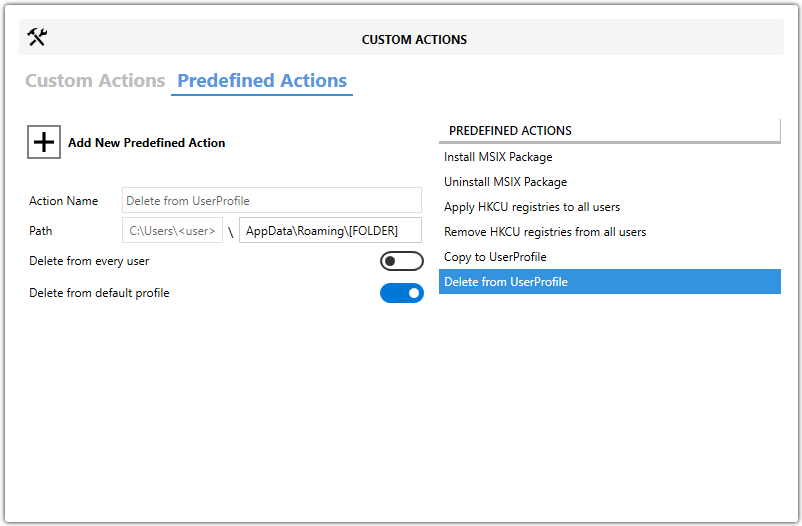
Use this predefined action to delete a file or folder from every existing user profile during a SYSTEM-context installation.
You can also remove the same item from the default user profile so new users do not receive it later.
When to Use It
Use this action when you need to remove per-user files, folders, shortcuts, or application data from all users while the MSI runs under SYSTEM.
Fields
| Field | Description |
|---|---|
| Target path | Specifies the per-user file or folder to delete. |
| Include default profile | Removes the item from the default profile so new users do not receive it. |
Steps
- Open the
MSIorMSTin Master Packager. - In the left pane, select Custom Actions.
- Open the Predefined Actions tab.
- Click Add Predefined Action and select Delete from User Profile.
- Set Target path to the per-user file or folder that should be deleted.
- Enable Include default profile if the item should also be removed from the default profile.
tip
The selected file or folder is deleted for all users on the target machine.