Remove HKCU Registries from All Users
Use this predefined action to remove HKEY_CURRENT_USER (HKCU) registry entries from every existing user profile and from the default user profile during a SYSTEM-context installation or uninstallation.
This lets you remove per-user settings for all users even when the MSI runs under SYSTEM, which is common in enterprise deployments.
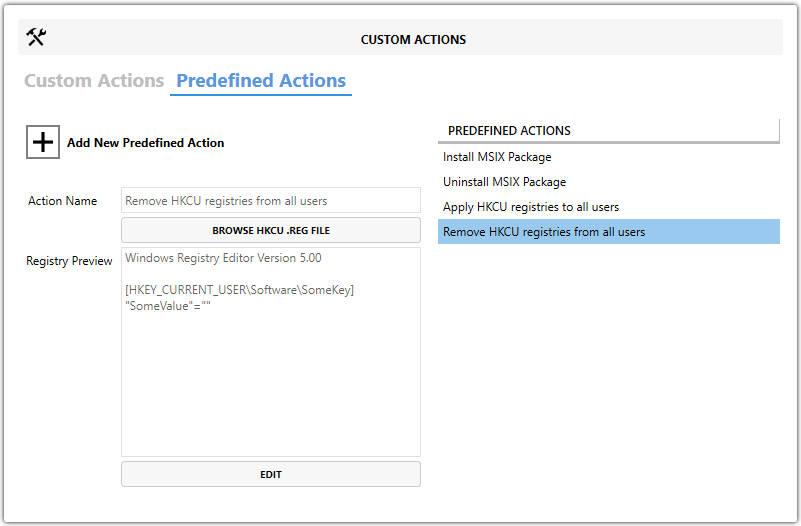
When to Use It
Use this action when application settings stored in HKCU must be removed or reset for all users.
Registry Data Format
The imported .reg file must follow this format:
Windows Registry Editor Version 5.00

[HKEY_CURRENT_USER\Software\SomeKey]
warning
Any key listed in the action will be removed.
Provide Registry Data
| Option | Description |
|---|---|
| Browse HKCU .REG File | Imports the registry keys to remove from a .reg file. |
| Edit | Opens the editor so you can enter or paste the registry data manually. |
Steps
- Open the
MSIorMSTin Master Packager. - In the left pane, select Custom Actions.
- Open the Predefined Actions tab.
- Click Add Predefined Action and select Remove HKCU Registries from All Users.
- Add the registry data by using Browse HKCU .REG File or Edit.