Uninstall MSIX Package
Use this predefined action to uninstall an MSIX package for all users during MSI uninstallation.
You can identify the package either by the path to the .msix file or by its name.
note
Some MSIX applications can leave user-specific data behind even after the package is removed.
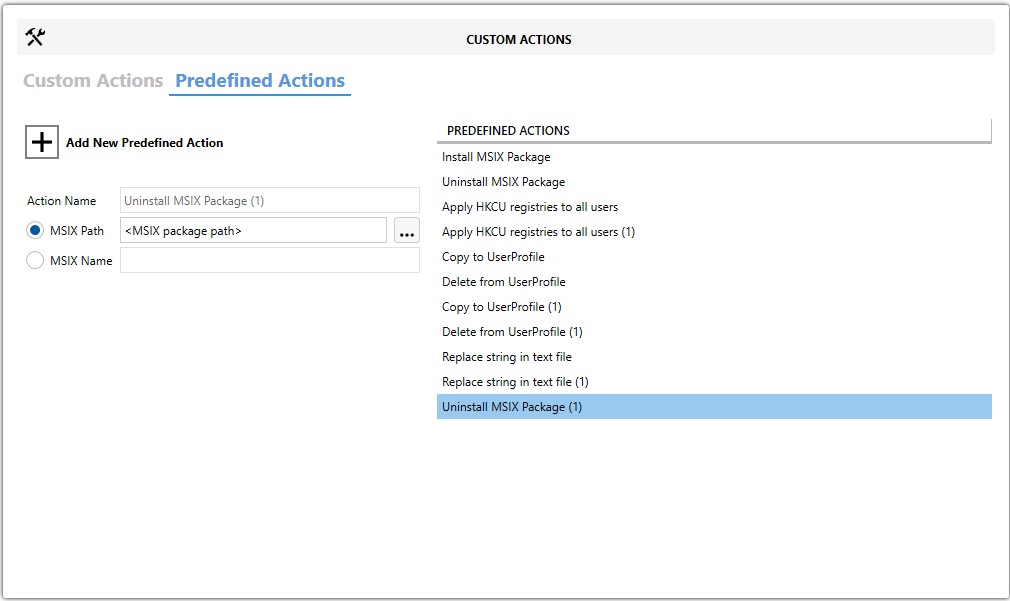
Fields
| Field | Description |
|---|---|
| Action Name | Identifies this predefined action in your project. |
| MSIX Path | Identifies the package by the path to the .msix file. Use the browse button to select the file. |
| MSIX Name | Identifies the package by its display name or Package Family Name. You can retrieve it with Get-AppxPackage. |
Steps
- Open the
MSIorMSTin Master Packager. - In the left pane, select Custom Actions.
- Open the Predefined Actions tab.
- Click Add New Predefined Action and select Uninstall MSIX Package.
- Enter a value in Action Name.
- Choose whether to identify the package by MSIX Path or MSIX Name.
- If you use MSIX Path, browse to the
MSIXfile you want to uninstall. - If you use MSIX Name, enter the package name or
Package Family Name.
tip
If you use MSIX Name, make sure the value matches the installed package exactly.