Shortcuts
The Shortcuts view shows all shortcuts in the MSI and lets you add or edit them.
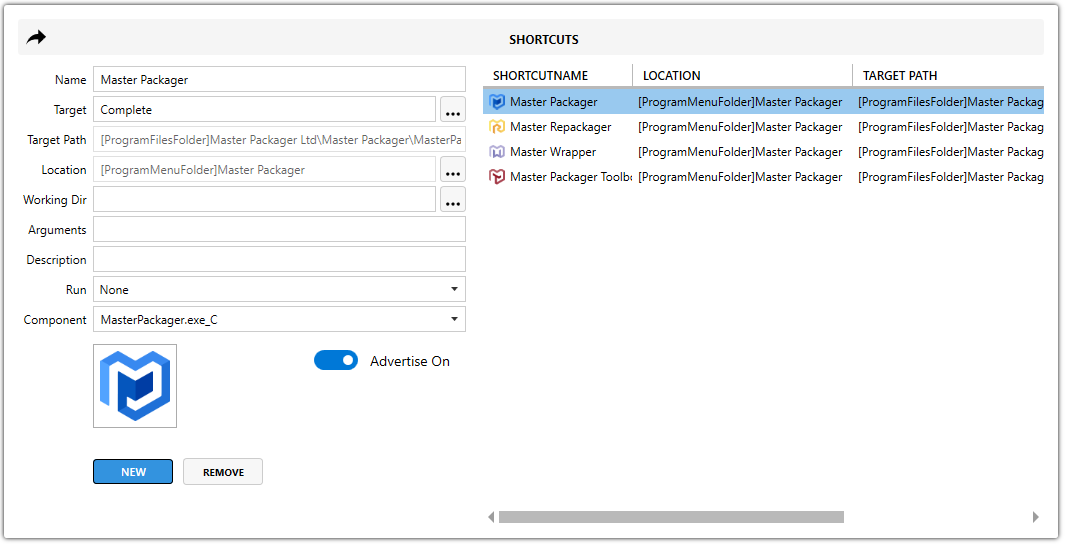
Add a shortcut
Open the shortcut editing flyout, complete the required fields, and select Add.
Shortcut fields
| Field | Description |
|---|---|
| Name | Sets the shortcut name. |
| File Target | Points directly to a specific file. |
| Component Target (Advertised Shortcut) | For advertised shortcuts, Target shows the component name instead of a direct file path. When the shortcut runs, Windows Installer checks whether the component key path exists and repairs the installation if needed before launching the application. |
| Location | Sets the shortcut location. |
| Working Directory | Sets the folder from which the target application starts. Some applications need this to locate dependent files. |
| Arguments | Sets the command-line arguments passed to the target file. |
| Description | Sets the shortcut Comment field shown as tooltip text in Windows Explorer. |
| Run | Specifies how the application window is displayed. |
| Component | Defines which component installs the shortcut. Every shortcut in the MSI must belong to a component. |
For Location, [ProgramMenuFolder] is usually the best choice. It resolves to C:\ProgramData\Microsoft\Windows\Start Menu\Programs.
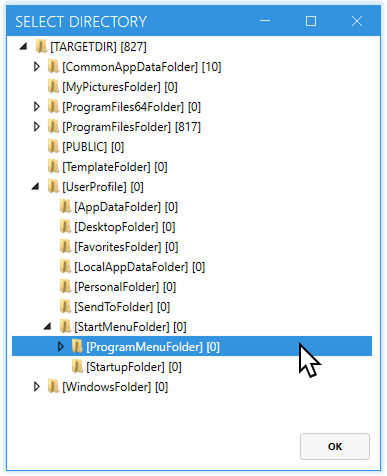
This keeps the shortcut aligned with standard Windows behavior and user expectations.
Advertised shortcuts help with self-repair, but they can cause unexpected repair prompts if the MSI is configured incorrectly.
Advertised shortcut configuration
When adding a shortcut, choose whether it should be advertised or non-advertised.
| Option | Description |
|---|---|
ON (recommended) | Installs the shortcut as advertised. It can trigger MSI repair if the component key path is missing. |
OFF | Runs the target file directly and does not trigger MSI repair. |
Advertised shortcuts are recommended in most cases because they help keep the application functional if the component key path goes missing. They also require an explicit icon because they do not inherit the target executable icon by default.