Upgrade
The Upgrade view lists all upgrade entries stored in the Upgrade table and lets you control how previous MSI versions are handled.
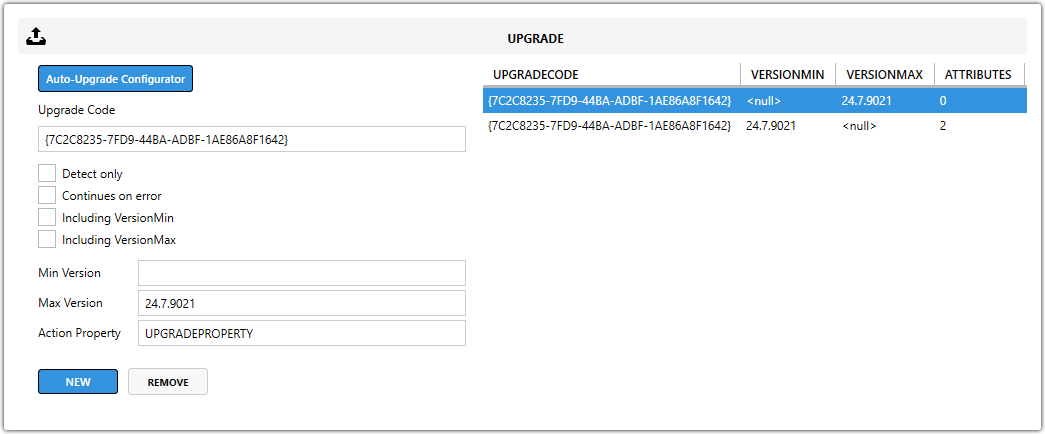
Add an upgrade entry
Use this feature when older versions of the application must be upgraded automatically during installation.
note
If there is no previous version of the application, you can skip this configuration.
- Open the upgrade editing flyout. If an existing Upgrade Code is selected, press
NEW. - Press
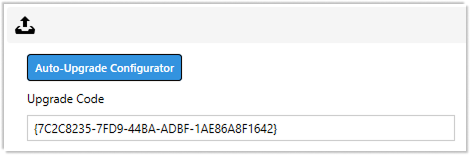
DEFAULTto apply the recommendedMSIupgrade settings automatically. - Verify that the Upgrade Code matches the code used in the previous
MSIversion that you want to upgrade.
tip
When you create a new MSI that upgrades an older version, keep the Upgrade Code in General Information the same as in the previous MSI.
- Repeat these steps until all previous version Upgrade Code entries are added.
Why use the Upgrade table?
- Remove or replace older versions during installation.
- Avoid conflicts between different
MSIversions. - Keep installations cleaner by reducing leftover files or registry entries from older versions.