About Transform Files
Transform files (.MST) let you customize an MSI without editing the original package. They store only the differences between the base MSI and your changes.
In Master Packager, transforms are useful for preserving vendor packages while still applying properties, feature changes, registry updates, and other installation settings.
Why use transform files
- Preserve the vendor
MSI, which makes future updates or replacements easier. - Apply settings during installation and repair, unlike command-line properties that apply only during installation.
- Work well with enterprise deployment tools.
Limitations
- You cannot add files directly to a transform. Store files in external
CABfiles instead. - You cannot modify some areas, such as Summary Information, through an
MST. - Some vendor
MSIpackages do not behave correctly with transforms and may need repackaging first.
Create a transform
- Open the
MSIin Master Packager. - Choose New Transform to start recording changes.
- Make the required changes, such as properties, features, or registry entries.
- Save the transform as an
.MSTfile.
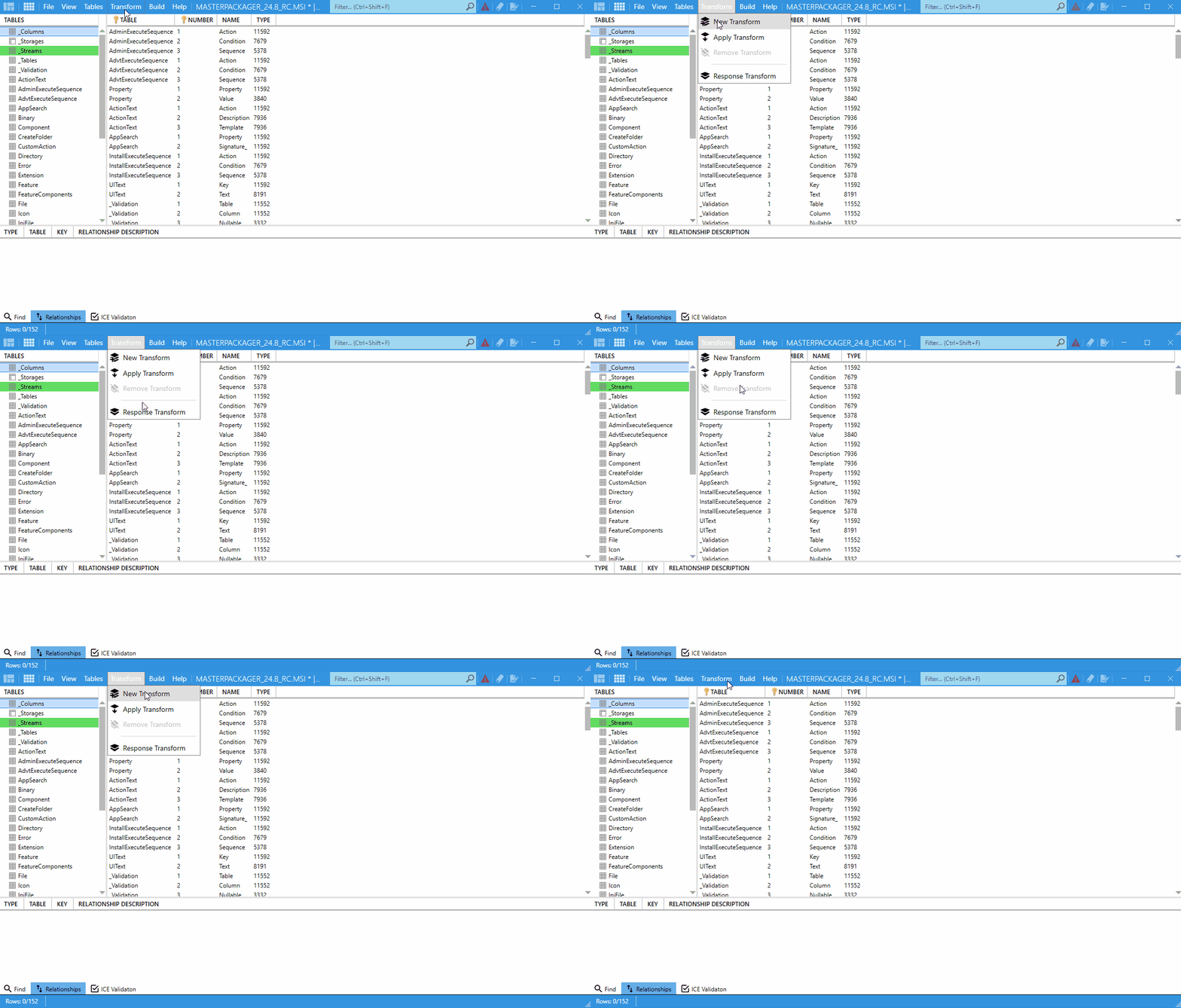
The saved .MST contains only the recorded changes. In Master Packager, you can attach it to an installer so installation, uninstallation, and repair automatically use it.
Apply a transform
In Master Packager
- Add the
.MSTwhen you include anMSIin the installer list. - Master Packager automatically applies the transform for installation, uninstallation, and repair.
From the command line
msiexec /i setup.msi TRANSFORMS=custom.mst
To apply multiple transforms, separate them with semicolons:
msiexec /i setup.msi TRANSFORMS=base.mst;custom.mst
Remove a transform
- Rerun the
MSIwithout theTRANSFORMSproperty. - In Master Packager, remove the transform entry from the installer configuration.
- For embedded transforms, open the
MSIin Master Packager and delete the embedded.MST.
Best practices
- Do not edit vendor
MSIfiles directly when a transform is sufficient. - Use a transform instead of command-line properties when the setting must persist during repair.
- Test transforms on different operating system languages and editions.
- Rebuild non-standard
MSIpackages before applying transforms if vendor packaging causes problems. - Use Response Transform when you want to capture installer dialog changes instead of removing files or registry entries manually.
tip
For Adobe Reader and similar vendor packages, transforms are the standard way to preconfigure enterprise options such as disabled updates or auto-launch behavior.