Digital Signature
The Digital Signature feature lets you sign MSI files to confirm authenticity, integrity, and trust. A signed package shows that the file was not modified after signing and identifies the signer.
This is especially important in environments where unsigned packages may be blocked by security policies.
Supported signing methods
- Certificate file (
.pfx,.p12) — Sign with a local certificate file. - Certificate thumbprint — Use a certificate from the Windows certificate store.
Trusted Signing— Use a cloud-based signing workflow.
How to use it
- Open the
MSIin Master Packager. - Select Digital Signature on the top toolbar.
- Choose the signing method you want to use.
- Apply the digital signature.
- Save the
MSI.
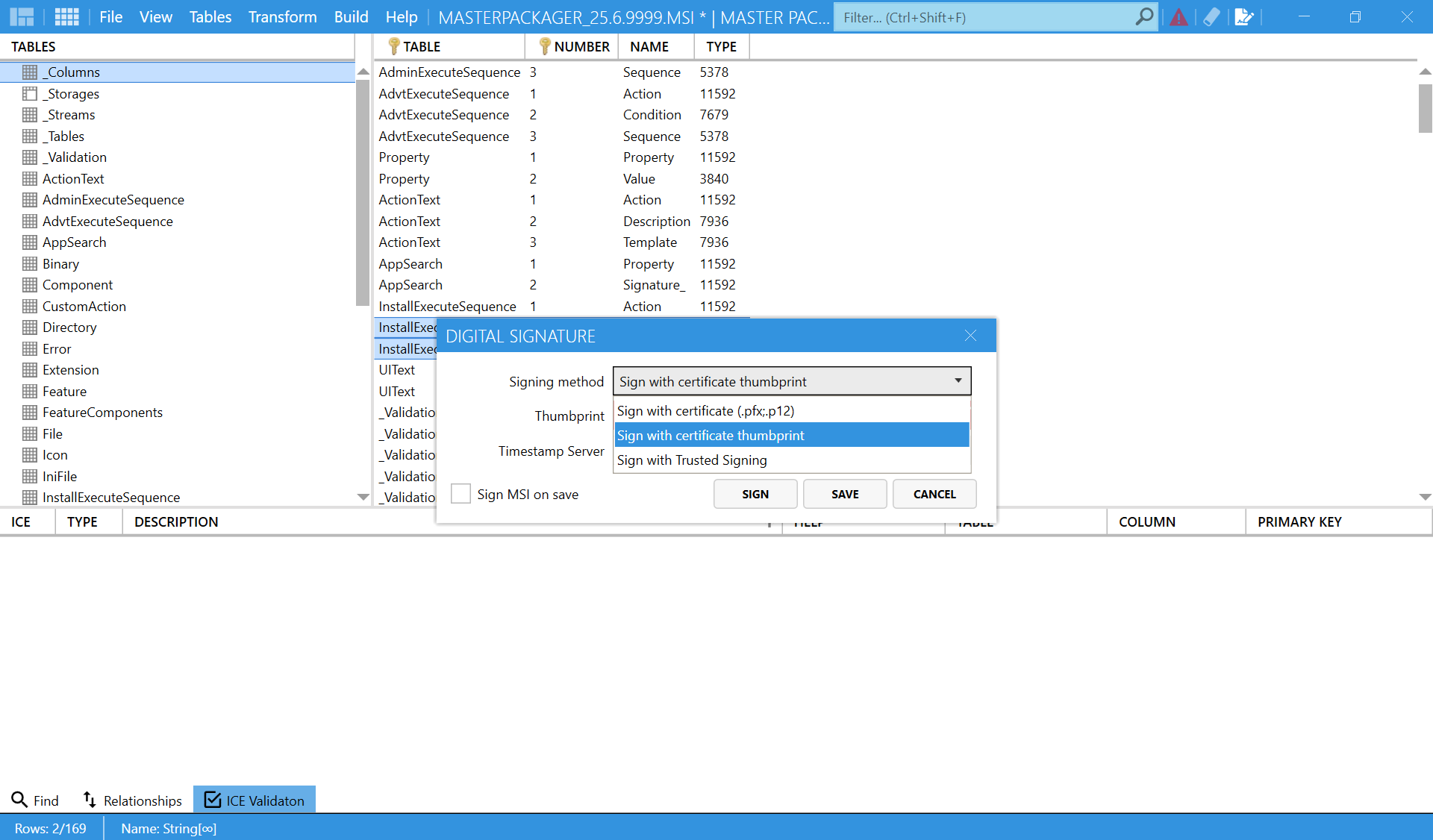
The signed package then shows digital signature details in its file properties.
When to use it
Use this feature when you need to:
- Prepare an
MSIfor internal or external distribution. - Meet organizational or Windows security policies that require signed installers.
- Ensure the package cannot be modified without detection.
tip
For automation or continuous integration, use Trusted Signing with Azure to sign packages without manual password entry.