Export, Import or Drop Table
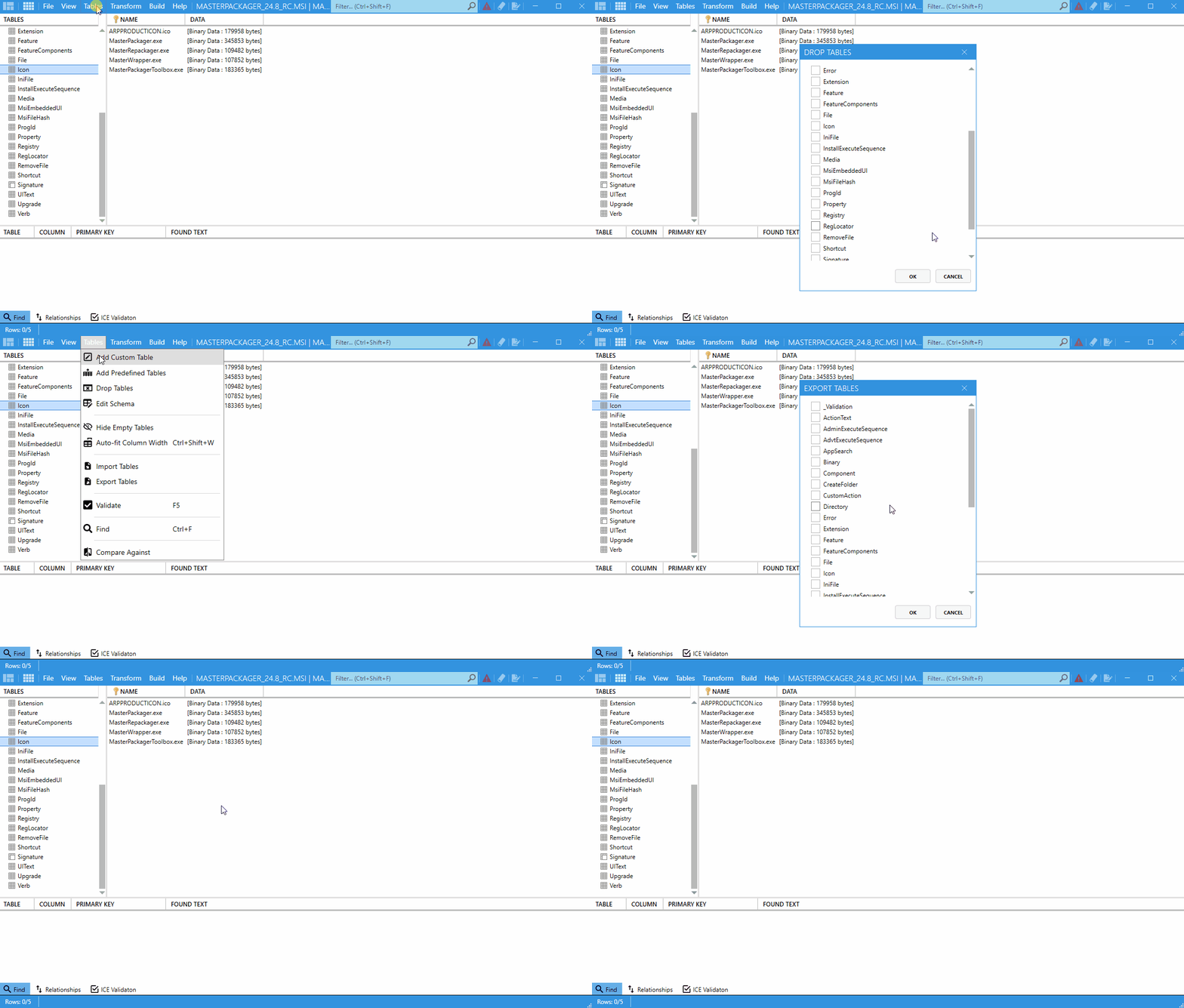
Use Export Table, Import Table, and Drop Table to manage individual tables inside an MSI or MST. These actions are useful for backup, sharing, cleanup, and advanced packaging work.
Available actions
| Action | What it does | Common use |
|---|---|---|
| Export Table | Saves the structure and contents of a single table to an .idt file. | Back up a table or share it with another project. |
| Import Table | Imports a previously exported .idt file into the open MSI or MST. | Restore a table or apply standardized data. |
| Drop Table | Removes a table entirely from the MSI or MST. | Remove unused tables or simplify the package structure. |
How to use them
- Open your
MSIorMSTfile in Master Packager. - Go to the Table tab, or right-click the table name.
- Choose Export Table, Import Table, or Drop Table.
- Complete the action you selected:
- For Export Table, choose where to save the
.idtfile. - For Import Table, browse to the
.idtfile you want to load. - For Drop Table, confirm that you want to remove the table.
- For Export Table, choose where to save the
note
Dropping a table is permanent in the current session unless you undo it. Back up the MSI or MST before removing tables.