General
The General section defines the application your wrapper targets. You can fill in the fields manually or load an MSI or EXE file to populate the information automatically.
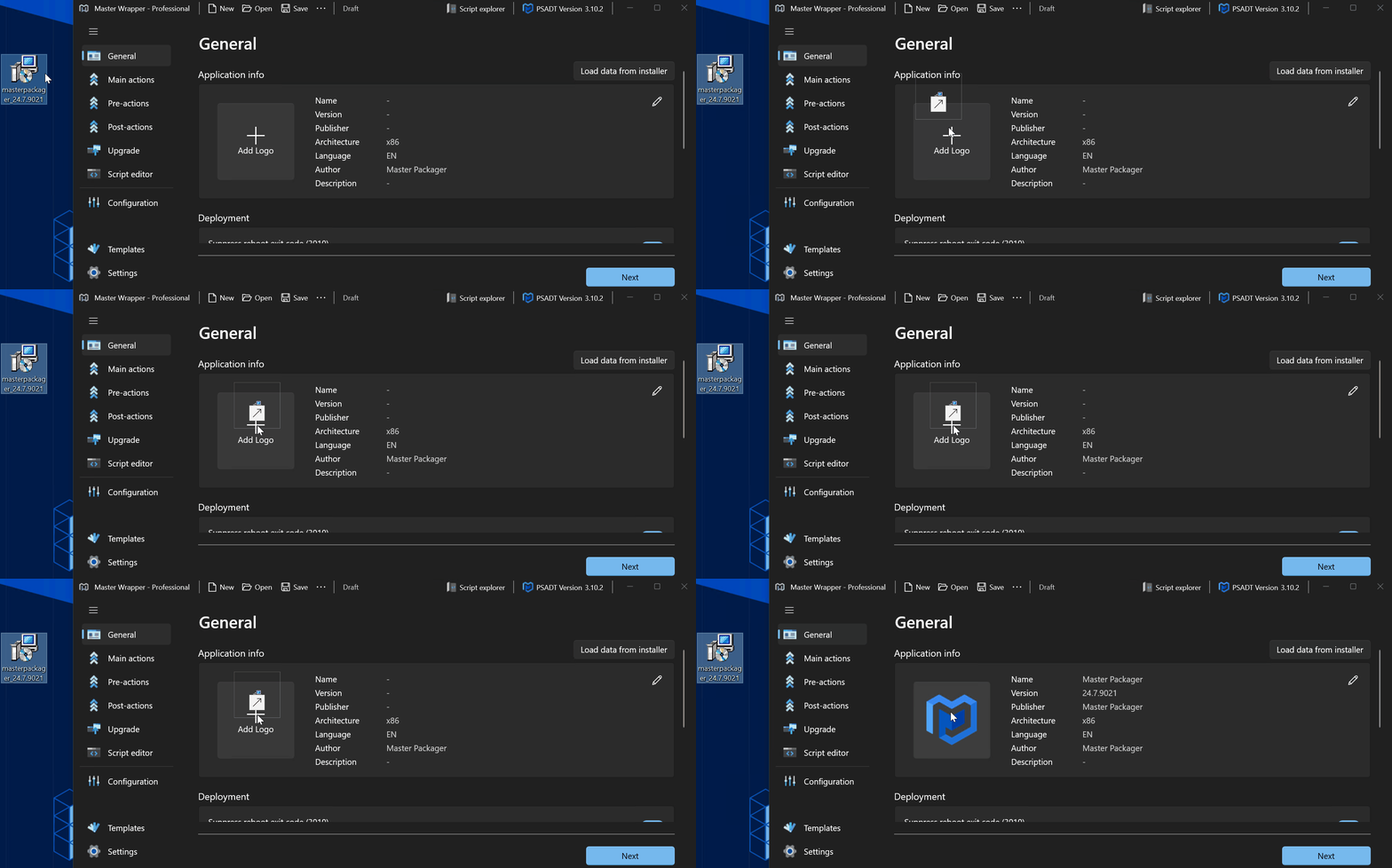
Application Information
This section stores the metadata used to identify the package in deployment tools, logs, and related workflows.
| Field | Description |
|---|---|
| Name | Name of the application. |
| Version | Version of the wrapped application. |
| Publisher | Software publisher name. |
| Architecture | Target platform: x86, x64, or arm64. |
| Language | Language used by the application. |
| Author | Person or organization creating the package. |
| Description | Optional description of the package. |
Use Load data from installer or drag and drop an installer to populate these fields from the original MSI or EXE file.
Deployment
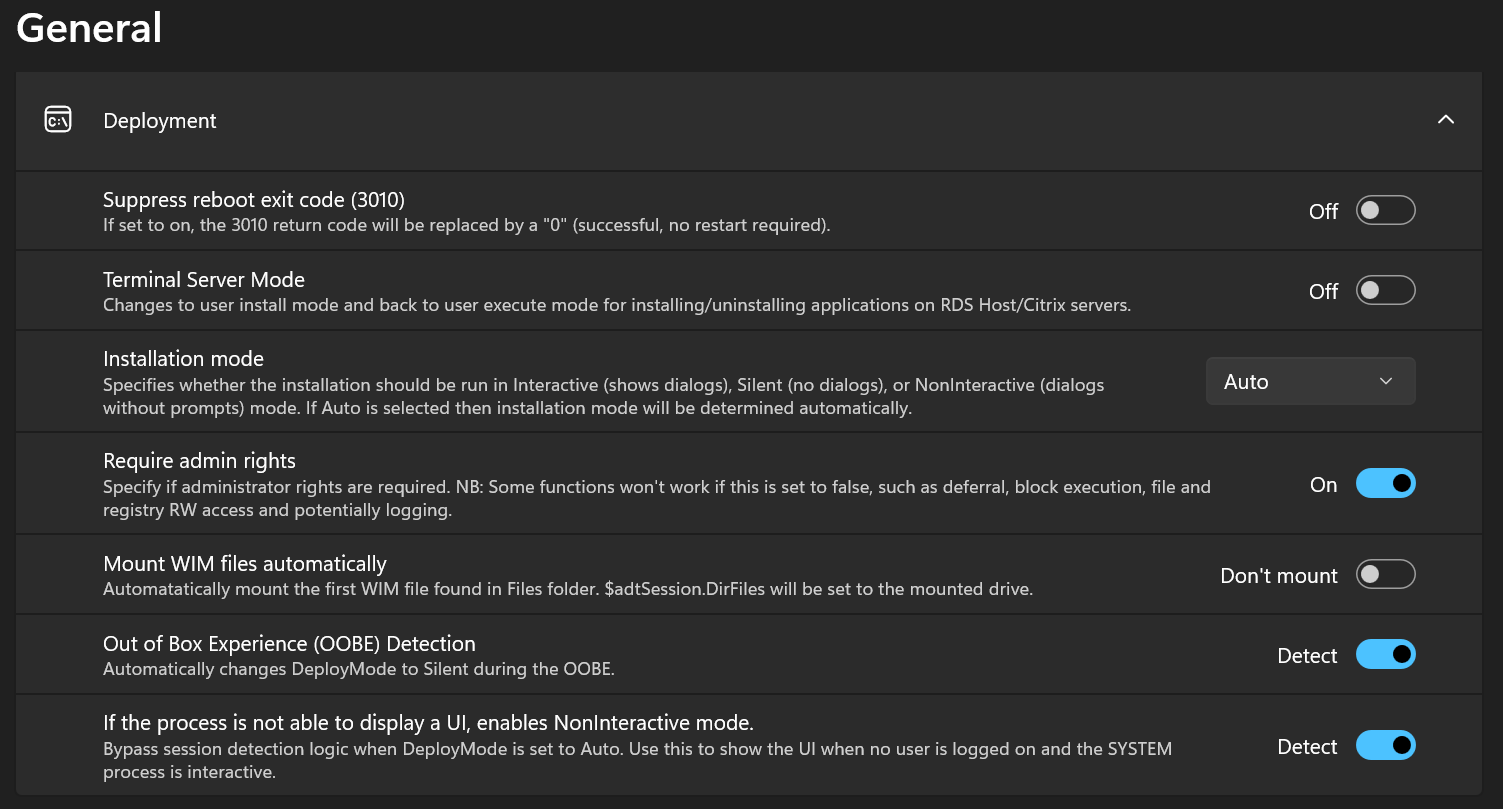
These settings control how installation, uninstallation, and repair actions run.
| Setting | Description |
|---|---|
| Suppress reboot exit code (3010) | Replaces return code 3010 with 0 to report success without a restart requirement. |
| Terminal Server Mode | Switches to user install mode and then back to user execute mode for RDS Host or Citrix servers. |
| Installation mode | Determines how the installation runs. Available modes are Interactive, Silent, NonInteractive, and Auto. |
| Require admin rights | Defines whether administrative rights are required. |
| Mount WIM files automatically | Automatically mounts the first WIM file in the Files folder and assigns $adtSession.DirFiles to the mounted drive. |
| Out of Box Experience (OOBE) Detection | Automatically changes DeployMode to Silent during OOBE. |
| If the process is not able to display a UI, enables NonInteractive mode | Bypasses session detection logic when DeployMode is set to Auto. Use this when no user is logged on but the SYSTEM process is interactive. |
If Require admin rights is set to false, some functions may not work, including deferral, block execution, file and registry read/write access, and possibly logging.
Package Detection
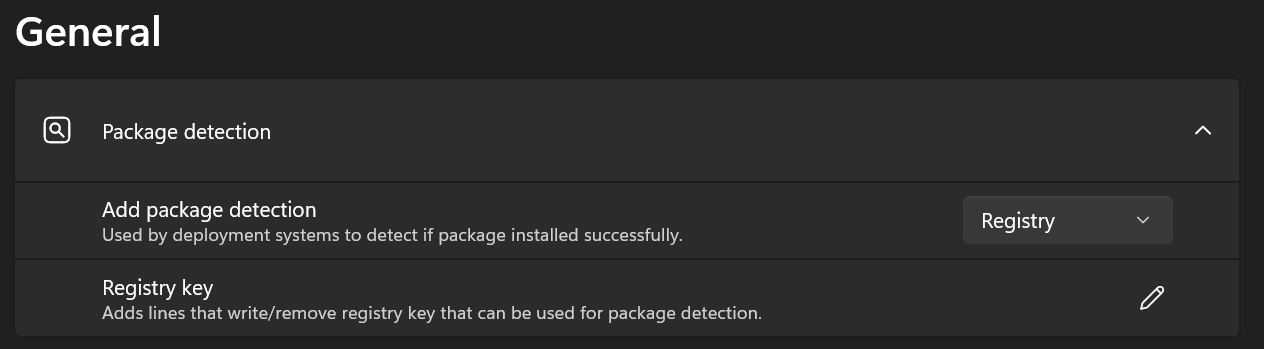
Package detection defines how the system determines whether an application is installed. Select Add rule and choose one of the available rule types.
| Rule type | Description |
|---|---|
| MSI | Detects the application by MSI product code and, optionally, version. |
| Registry | Detects the application by checking a specific registry key or value. |
| Predefined registry | Generates a registry rule automatically from the application data in Master Wrapper. |
| File | Detects the application by checking a file or folder path. |
| Script | Detects the application by running a PowerShell script. |
MSI Detection
MSI detection verifies the application by Product Code. You can also enable version checking and compare the installed version with one of these operators:
EqualsNot equal toGreater thanGreater than or equal toLess thanLess than or equal to
If version checking is disabled, only the Product Code is evaluated.
Registry Detection
Registry detection checks whether a registry key or value exists. Use Predefined registry detection when the rule can be generated from the package metadata, or Custom registry detection when you need to define the key and value manually.
For custom registry detection, you can also search the 32-bit registry on 64-bit clients.
| Detection method | Available comparisons |
|---|---|
| Key exists / Key does not exist | Presence check only. |
| String comparison | Equals, Not equal to |
| Version comparison | Equals, Not equal to, Greater than, Greater than or equal to, Less than, Less than or equal to |
| Integer comparison | Equals, Not equal to, Greater than, Greater than or equal to, Less than, Less than or equal to |
File Detection
File detection checks whether a file or folder exists at a specified path. You can also search the 32-bit path on 64-bit clients.
| Detection method | Available comparisons |
|---|---|
| File or folder exists | Presence check only. |
| Date modified | Equals, Not equal to, Greater than, Greater than or equal to, Less than, Less than or equal to |
| Date created | Equals, Not equal to, Greater than, Greater than or equal to, Less than, Less than or equal to |
| Version comparison | Equals, Not equal to, Greater than, Greater than or equal to, Less than, Less than or equal to |
| Size in MB | Equals, Not equal to, Greater than, Greater than or equal to, Less than, Less than or equal to |
Script Detection
Script detection runs a PowerShell script to determine whether the application is installed. Use Write-Output to report a successful installation state.
If the exit code is 0 and output is returned, the application is reported as installed. Any other exit code reports failure.
Available options:
- Enforce script signature check and run silently.
- Run the script as a 32-bit process on 64-bit clients.
- Use inline script content or an external
.ps1file.
Only one script detection rule can be added per package, and it cannot be combined with any other detection rule.
Additional Information
Use these fields to store deployment details that are helpful when publishing the package through related tools such as Master Packager Toolbox.
| Field | Description |
|---|---|
| Information URL | Link to a website or documentation page. The URL is visible to users in Company Portal. |
| Intune Categories | Intune categories that are prefilled automatically when uploading the package with Master Packager Toolbox, such as Books & Reference, Business, Computer Management, or Productivity. |
| Notes | Additional information such as dependency names, special installation instructions, or ticket IDs. The text is added to the Notes section during Intune upload through Master Packager Toolbox. |