Upgrade
The Upgrade section provides a guided interface for predefined PSADT functions so you can remove earlier application versions during an upgrade.
It helps you remove both MSI- and EXE-based applications, load MSI information automatically, and standardize upgrade logic across packages.
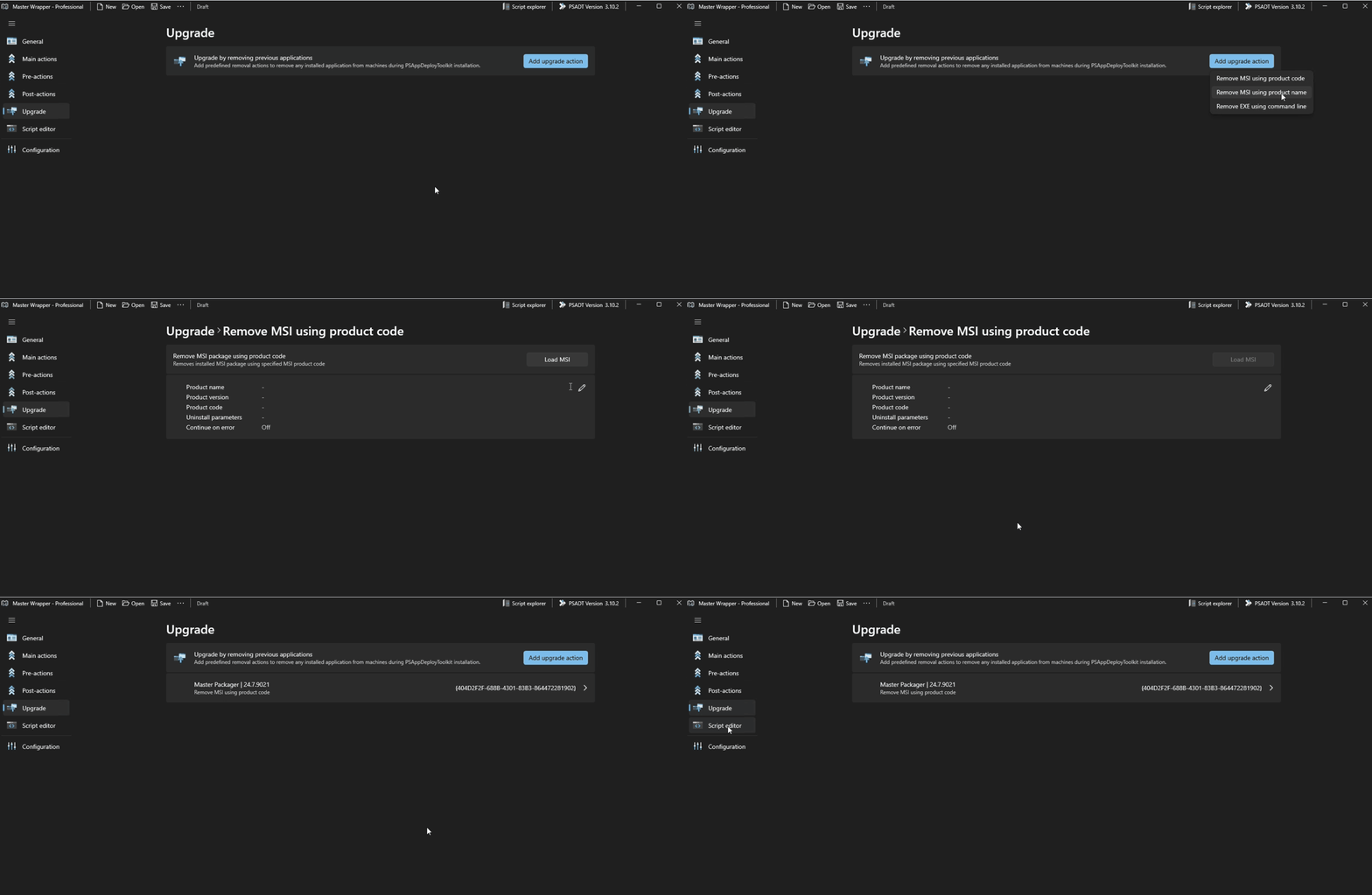
Available removal methods
| Method | Use when |
|---|---|
| Remove MSI using Product Code | The MSI product code is known and you want the most precise match. |
| Remove MSI using Product Name | The product code is unknown, but the product name is consistent. |
| Remove EXE using command line | The application uses an EXE uninstaller instead of MSI. |
Remove MSI Using Product Code
Use this method to remove an installed MSI package by Product Code. Because product codes are unique, this is the most precise MSI removal method.
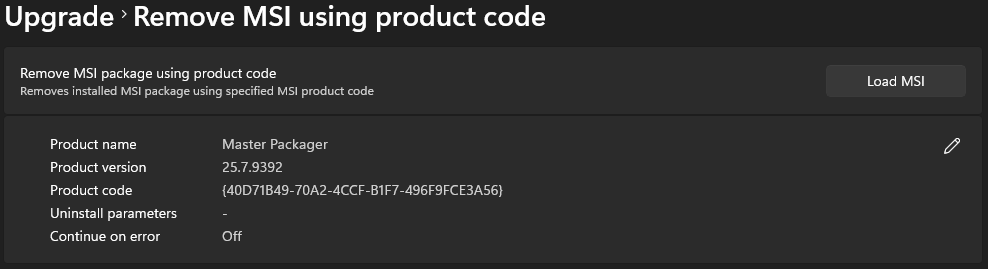
| Field | Description |
|---|---|
| Product name | Name of the installed application. |
| Product version | Version of the application to remove. |
| Product code | Unique MSI product code used for identification and removal. |
| Uninstall parameters | Additional command-line parameters for the uninstall process. |
| Continue on error | Continues the upgrade process even if removal fails. |
Remove MSI Using Product Name
Use this method to remove MSI applications that match a specific product name.
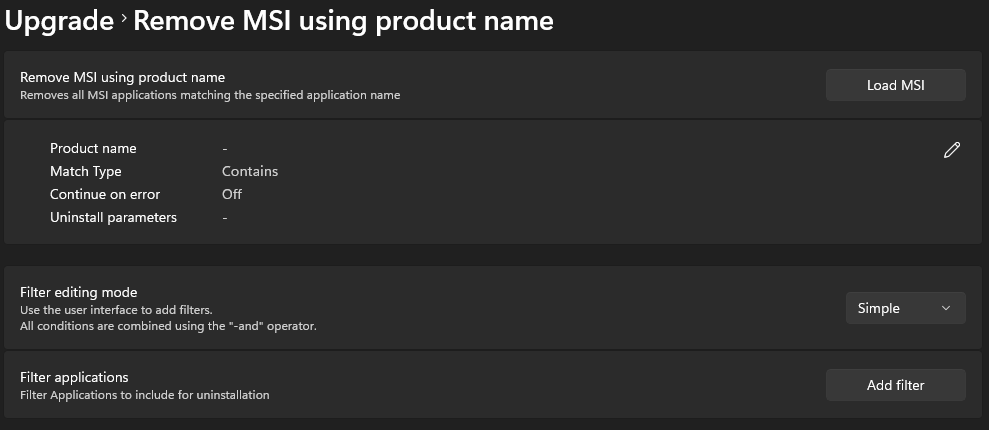
| Field | Description |
|---|---|
| Product name | Name used to identify the application. |
| Match type | Defines how the product name is matched, such as Contains or Equals. |
| Continue on error | Allows the upgrade to continue even if removal fails. |
| Uninstall parameters | Additional command-line parameters for the uninstall process. |
Filters
Filters let you narrow the removal scope when product name matching alone is not enough.
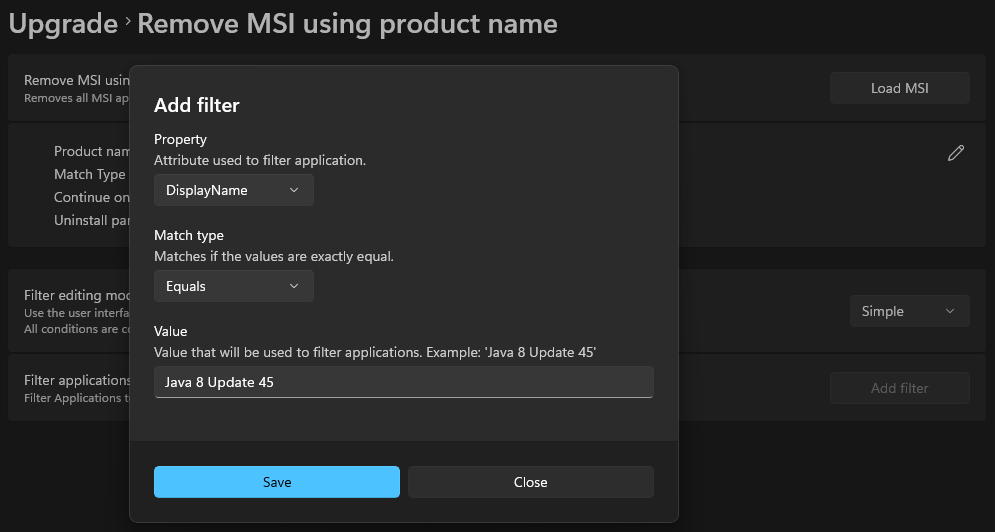
| Filter field | Description |
|---|---|
| Property | Attribute used for filtering. Available values are DisplayName, DisplayVersion, InstallDate, InstallLocation, InstallSource, Is64BitApplication, ProductCode, Publisher, and UninstallString. |
| Match type | Comparison used for filtering. Available values are Equals, Not Equals, Like, Not Like, Match, and Not Match. |
| Value | Expected value for the selected property, for example Java 8 Update 45. |
Advanced Filter Editing Mode
Use Advanced Filter Editing Mode when you need to write custom PowerShell filter logic for more specific targeting.
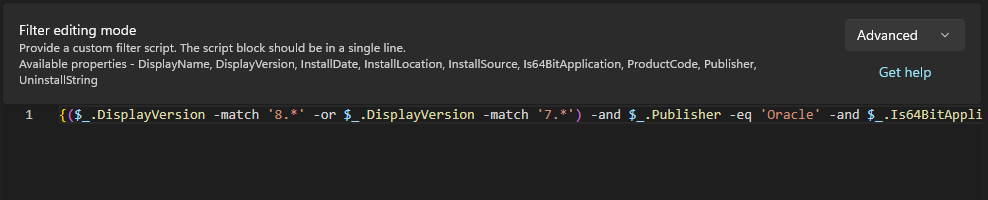
Remove EXE Using Command Line
Use this method to remove an EXE-based application by running a specific uninstall command.
| Field | Description |
|---|---|
| Product name | Name used for identification. |
| Product version | Version used for identification. |
| Full path to uninstall EXE | Full path to the executable used for uninstallation. |
| Arguments | Command-line arguments passed to the executable. |
| Continue on error | Continues the upgrade process if an error occurs during execution. |
How to use
- Open the Upgrade section in Master Wrapper.
- Select Add upgrade action.
- Choose a removal method.
- Enter the required fields for the selected method.
- Adjust uninstall parameters and error handling if needed.
- Save the configuration.